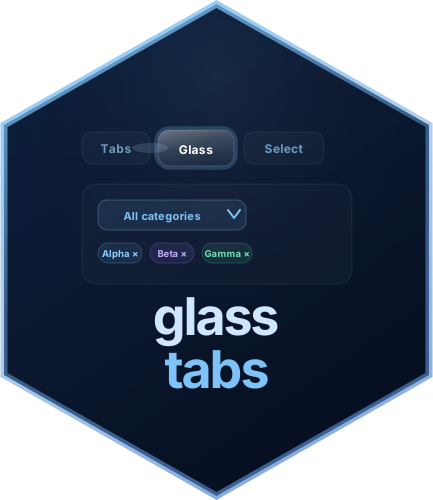
Animated tabs and select inputs that feel at home in a Shiny app.


glasstabs gives Shiny apps polished navigation and filtering without asking you to write custom JavaScript or CSS. The package includes:
glassTabsUI() for animated horizontal or vertical tab
navigationglassSelect() for a searchable single-select inputglassMultiSelect() for multi-select filters with
optional tag pillsThe widgets work in a regular fluidPage(), a
bslib app, or a bs4Dash dashboard. Each one
can use a dark, light, automatic, or custom colour theme.
Install the CRAN release:
install.packages("glasstabs")To install directly from the current GitHub source:
pak::pak("PrigasG/glasstabs@main")
packageVersion("glasstabs")
Installing from GitHub replaces the installed copy on your machine. For most people, the CRAN installation above is the simpler choice.
Call useGlassTabs() once in the UI, then compose the
widgets like ordinary Shiny controls. This app places a filter beside
two tabs and displays the current tab and selection.
library(shiny)
library(glasstabs)

choices <- c(Apple = "apple", Banana = "banana", Cherry = "cherry")

ui <- fluidPage(
  useGlassTabs(),
  glassTabsUI(
    "main",
    glassTabPanel(
      "overview", "Overview", selected = TRUE,
      h3("Fruit summary"),
      glassFilterTags("fruit")
    ),
    glassTabPanel(
      "details", "Details",
      h3("Selection details"),
      verbatimTextOutput("selection")
    ),
    extra_ui = glassMultiSelect(
      "fruit",
      choices,
      show_style_switcher = FALSE
    )
  ),
  verbatimTextOutput("active_tab")
)

server <- function(input, output, session) {
  active_tab <- glassTabsServer("main")

  output$active_tab <- renderPrint(active_tab())
  output$selection <- renderPrint(input$fruit)
}

if (interactive()) {
  shinyApp(ui, server)
}
glassMultiSelect() selects every choice by default. Use
selected = character(0) when the filter should start
empty.
Tabs are made from glassTabPanel() objects. The first
selected panel is shown when the app opens.
glassTabsUI(
  "reports",
  glassTabPanel("summary", "Summary", selected = TRUE, summary_ui),
  glassTabPanel("table", "Table", tableOutput("results")),
  glassTabPanel("notes", "Notes", textAreaInput("notes", NULL))
)
A single-select behaves like a standard Shiny input. Its value is
available at input$region.
glassSelect(
  "region",
  c(North = "north", South = "south", East = "east", West = "west"),
  label = "Region",
  clearable = TRUE
)
A multi-select returns a character vector and can display the selected values as tag pills anywhere in the UI.
glassMultiSelect(
  "status",
  c(Open = "open", Review = "review", Closed = "closed"),
  selected = c("open", "review"),
  label = "Status"
)

glassFilterTags("status")
The multi-select
guide covers selection semantics, summaries, search, linked filters,
server updates, and migration from
selectizeInput(multiple = TRUE). The corresponding single-select
guide covers one-value controls.
Select dropdowns always match their trigger width. The standard width
is a compact 160px; use the optional width
argument only when an app needs more room for long labels. Both fixed
and fluid CSS widths are supported and remain capped by the containing
layout, so width = "240px" works well for a wider filter
while width = "100%" fills the available column.
Exceptionally long labels still wrap safely inside the matching
panel.
glassSelect("industry", industry_choices, width = "240px")
glassMultiSelect("filters", filter_choices, width = "100%")
With glassSelect(),
overflow_tooltip = "auto" (the default) reveals an
ellipsized selected label on pointer hover or keyboard focus. Inside
either open dropdown, it reveals only the truncated option currently
hovered or reached with keyboard navigation. Multi-select never combines
every selected label into one noisy trigger tooltip. Touch users read
the wrapped option in the open dropdown. Set
overflow_tooltip = "never" to suppress visual tooltips.
The select controls also expose their presentation choices directly:
glassSelect(
  "industry", industry_choices,
  theme = "auto",
  dark_selector = "body.app-dark", # optional custom dark-mode hook
  tongue = FALSE,              # detached panel with a short fade
  label_bold = TRUE,
  label_size = "14px",
  search_focus_ring = FALSE    # quiet search focus is the default
)

glassMultiSelect(
  "filters", filter_choices,
  check_style = "filled",
  fill_colors = "single"       # use "multi" for per-choice hues
)
tongue = TRUE keeps the signature attached unfurl
animation. Turning it off does not remove motion entirely: the detached
panel uses a restrained open and close transition and still honors
reduced-motion preferences.
With theme = "auto", all tabs and select widgets default
to Bootstrap’s [data-bs-theme="dark"] signal. Supply
dark_selector when an application uses a different class or
attribute to announce dark mode. An explicit selector also works with
theme = "light" for applications that switch modes
later.
For a short list, the search box can stay out of the way. Both select
widgets accept searchable = "auto"; search appears only
when the list reaches the chosen threshold. Five categories, for
example, remain uncluttered when the threshold is six.
glassSelect(
  "category",
  category_choices,
  searchable = "auto",
  search_threshold = 6
)
The multi-select trigger can also show a compact summary instead of the generic “Multiple selection” label.
glassMultiSelect(
  "facility",
  facility_choices,
  searchable = "auto",
  search_threshold = 12,
  selection_display = "summary",
  selection_max_items = 2,
  dropdown_max_height = "18rem"
)
Choice updates are handled as one transaction. Existing selections
are kept when they still exist, and Shiny is notified only when the
effective value changes. notify = "never" is useful when
several linked filters are settling and the final update should be the
only one that reaches the server.
updateGlassMultiSelect(
  session,
  "facility",
  choices = facilities_for_region,
  preserve_selection = TRUE,
  drop_invalid = TRUE,
  notify = "changed"
)Use theme = "auto" in Bootstrap 5 or bslib
apps so the widgets follow the page’s light and dark modes. Use
shape = "square" when the controls sit next to native Shiny
inputs.
glassTabsUI(
  "nav",
  glassTabPanel("one", "One", selected = TRUE, p("First panel")),
  glassTabPanel("two", "Two", p("Second panel")),
  indicator = "underline",
  theme = "auto"
)

glassSelect("region", choices, shape = "square", theme = "auto")
glassMultiSelect("filters", choices, shape = "square", theme = "auto")
Tabs also support a vertical rail and three indicator styles:
glassTabsUI(
  "workflow",
  glassTabPanel("intake", "Intake", selected = TRUE, intake_ui),
  glassTabPanel("review", "Review", review_ui),
  glassTabPanel("approve", "Approve", approve_ui),
  orientation = "vertical",
  indicator = "solid",
  tab_align = "left",
  text_align = "left"
)
tab_align places the tab group at the left, center, or
right of the available navigation area in either layout.
text_align separately aligns labels and icons inside each
tab button. For visible left or right alignment in a horizontal bar, the
buttons share the width of the widest label.
Tab content sits in a subtle glass container, so the tabs and their content read as one connected component instead of a tab bar floating over bare space. The active tab picks up a soft light on its content-facing edge to tie them together.
Use style = "attached" to dock the tab bar directly onto
the content box as a single card, and transition = "slide"
to slide panes in the direction you move between tabs:
glassTabsUI(
  "reports",
  glassTabPanel("summary", "Summary", selected = TRUE, summary_ui),
  glassTabPanel("activity", "Recent activity", activity_ui),
  glassTabPanel("quality", "Data quality", quality_ui),
  style = "attached",
  transition = "slide"
)Long tab bars stay on one line and scroll on smaller screens. The active tab comes back into view after a click, keyboard change, swipe, or server update.
glassTabsUI(
  "reports",
  glassTabPanel("summary", "Summary", selected = TRUE, summary_ui),
  glassTabPanel("activity", "Recent activity", activity_ui),
  glassTabPanel("quality", "Data quality", quality_ui),
  glassTabPanel("settings", "Team settings", settings_ui),
  overflow = "scroll"
)
overflow = "multiline" keeps every label visible on as
many rows as needed. For horizontal tabs, overflow = "menu"
replaces the strip with a compact native chooser. Vertical tabs already
use a rail, so menu mode is not available there. Touch swipes are
available with swipe = TRUE; they start only on ordinary
panel content, leaving inputs, plots, maps, and horizontally scrolling
tables alone.
Keyboard focus follows the selected tab. Arrow keys move between available tabs, while Home and End jump to the first and last. Motion is shortened when the device asks for reduced motion, and solid colors take over when glass blur is unavailable.
glassPage() is a small wrapper around
bslib::page_fillable(). It loads the package assets
automatically and starts with Bootstrap 5. The wrapper is experimental
during the 0.4.x cycle; regular Shiny and bslib pages remain fully
supported.
ui <- glassPage(
  title = "Team review",
  glassTabsUI(
    "review",
    glassTabPanel("queue", "Queue", queue_ui),
    glassTabPanel("done", "Done", done_ui),
    theme = "auto"
  )
)
For a custom accent, change only the fields your app needs:
glassTabsUI(
  "nav",
  glassTabPanel("a", "A", selected = TRUE, p("Content")),
  glassTabPanel("b", "B", p("More content")),
  theme = glass_tab_theme(
    halo_bg = "rgba(37, 99, 235, 0.16)",
    halo_border = "#2563eb",
    focus_ring = "#1d4ed8"
  )
)

glassSelect(
  "region",
  choices,
  theme = glass_select_theme(
    mode = "light",
    accent_color = "#2563eb",
    focus_ring = "#1d4ed8"
  )
)
focus_ring keeps the keyboard indicator in the same
colour family as the rest of an app while remaining separate from its
decorative accent.
Inside a bs4Dash card, compact = TRUE
reduces spacing and wrap = FALSE lets the card provide the
outer container.
bs4Dash::box(
  width = 12,
  glasstabs::glassTabsUI(
    "dashboard",
    glassTabPanel("summary", "Summary", selected = TRUE, summary_ui),
    glassTabPanel("detail", "Detail", detail_ui),
    compact = TRUE,
    wrap = FALSE,
    theme = "light"
  )
)The widgets expose familiar Shiny inputs:
| Widget | Current value |
|---|---|
glassTabsUI("main", ...) |
input[["main-active_tab"]] |
glassSelect("region", ...) |
input$region |
glassMultiSelect("status", ...) |
input$status |
| An open select dropdown | input$region_open or
input$status_open |
Server helpers cover common programmatic changes:
server <- function(input, output, session) {
  observeEvent(input$next_step, {
    updateGlassTabsUI(session, "workflow", selected = "review")
    updateGlassTabBadge(session, "workflow", "review", count = 3)
  })

  observeEvent(input$reset_filters, {
    updateGlassSelect(session, "region", selected = character(0))
    updateGlassMultiSelect(session, "status", selected = character(0))
  })
}
Use glassTabCondition() when a regular
conditionalPanel() should follow the active glass tab:
conditionalPanel(
  condition = glassTabCondition("main", "details"),
  p("This appears while the Details tab is active.")
)For hundreds or thousands of choices, keep the full vector on the
server and send up to server_limit matching choices to the
browser for each search.
many_choices <- stats::setNames(
  sprintf("value-%04d", 1:2000),
  sprintf("Choice %04d", 1:2000)
)

ui <- fluidPage(
  useGlassTabs(),
  glassSelect("item", many_choices, server = TRUE, server_limit = 30),
  glassMultiSelect("filters", many_choices, server = TRUE, server_limit = 30)
)

server <- function(input, output, session) {
  glassSelectServer("item", many_choices, session = session, limit = 30)
  glassMultiSelectServer("filters", many_choices, session = session, limit = 30)
}| Function | Description |
|---|---|
useGlassTabs() |
Inject package CSS and JavaScript—call once in the UI |
glassPage(...) |
Experimental fillable Bootstrap 5 page with glasstabs already loaded |
runGlassExample(example) |
Launch a built-in example app (runGlassExample() lists
all available apps) |
glasstabs_news() |
Print the package changelog to the R console |
Built-in examples include basic, bs4dash,
bslib, connect-workflow,
dashboard, indicators,
light-mode, native-comparison,
server-select, smoke-test,
square-corners, stress-test, and
theme-switcher. The native-comparison lab
places native Shiny and glasstabs fields side by side, including an
intentionally truncated selected label and live controls for width,
tongue motion, labels, search focus, filled colors, and overflow
tooltips. The dedicated light-mode example includes long select labels
for checking adaptive dropdown sizing. The theme-switcher example flips
every select between dark and light with one switch, and exercises long
category names, wide text in a narrow phone frame, and a bottom-of-page
dropdown that must flip above the field. The Connect workflow brings
responsive, keyboard, touch, dynamic-tab, badge, theme, and page-wrapper
features together in one app.
| Function | Description |
|---|---|
glassTabsUI(id, ..., selected, wrap, compact, content_min_height, style, transition, shape, indicator, orientation, tab_align, text_align, overflow, swipe, extra_ui, theme, dark_selector) |
Animated tab bar with responsive overflow and optional touch swipes |
glassTabPanel(value, label, ..., icon, selected) |
Define one tab and its content; icon accepts
shiny::icon() |
glassTabsServer(id, bookmark) |
Reactive returning the active tab; can bookmark the active tab in the URL |
glassTabsOutput(outputId) |
UI placeholder for a server-rendered tab widget |
renderGlassTabs({expr}) |
Render a glassTabsUI() reactively; JavaScript
reinitialises automatically |
glassTabCondition(id, value) |
JavaScript condition string for conditionalPanel() |
updateGlassTabsUI(session, id, selected) |
Switch the active tab from the server |
updateGlassTabBadge(session, id, value, count) |
Set a numeric badge on a tab button (0 hides it) |
showGlassTab(session, id, value) |
Show a hidden tab |
hideGlassTab(session, id, value) |
Hide a tab from the navigation bar |
disableGlassTab(session, id, value) |
Disable a tab while keeping it visible |
enableGlassTab(session, id, value) |
Re-enable a disabled tab |
appendGlassTab(session, id, tab, select) |
Add a new tab at runtime |
removeGlassTab(session, id, value) |
Remove a tab at runtime |
glass_tab_theme(...) |
Create a custom colour theme for glassTabsUI() |
| Function | Description |
|---|---|
glassMultiSelect(inputId, choices, ...) |
Multi-select dropdown widget |
glassMultiSelectServer(inputId, choices, ...) |
Server-side search for large multi-select choice sets |
updateGlassMultiSelect(session, inputId, ...) |
Update multi-select choices, selection, or style |
glassMultiSelectValue(input, inputId, ...) |
Raw and resolved multi-select values, empty state, and style |
glassSelect(inputId, choices, ...) |
Single-select dropdown widget |
glassSelectServer(inputId, choices, ...) |
Server-side search for large single-select choice sets |
updateGlassSelect(session, inputId, ...) |
Update single-select choices, selection, or style |
glassSelectValue(input, inputId) |
Reactive helper for the selected value |
closeGlassSelect(session, inputId) |
Close one open single-select dropdown |
closeGlassMultiSelect(session, inputId) |
Close one open multi-select dropdown |
closeAllGlassSelects(session) |
Close every open glasstabs select dropdown |
glassFilterTags(inputId) |
Tag-pill display area synced to a multi-select |
glass_select_theme(...) |
Create a custom theme for glassSelect() and
glassMultiSelect() |
| Input | Type | Description |
|---|---|---|
input[["<id>-active_tab"]] |
character |
Active tab value from glassTabsUI() |
input$<inputId> |
character vector |
Selected values from glassMultiSelect() |
input$<inputId>_style |
character |
Active selection style from glassMultiSelect() |
input$<inputId>_open |
logical |
Whether a select dropdown is open |
input$<inputId>_ready |
logical |
Whether the select widget has finished initializing |
input$<inputId> |
character or NULL |
Selected value from glassSelect() |
The glasstabs
website includes focused articles, a searchable function reference,
and the v0.4.1
cheatsheet. Release notes are available in NEWS.md or from R with
glasstabs_news().
If a widget does not fit naturally into your app, please open a GitHub issue with a small Shiny example. Questions, bug reports, and ideas for making the package easier to use are all welcome.
